Published
- 2 min read
How to Set Up LibreSpeed | Docker Compose
Introduction
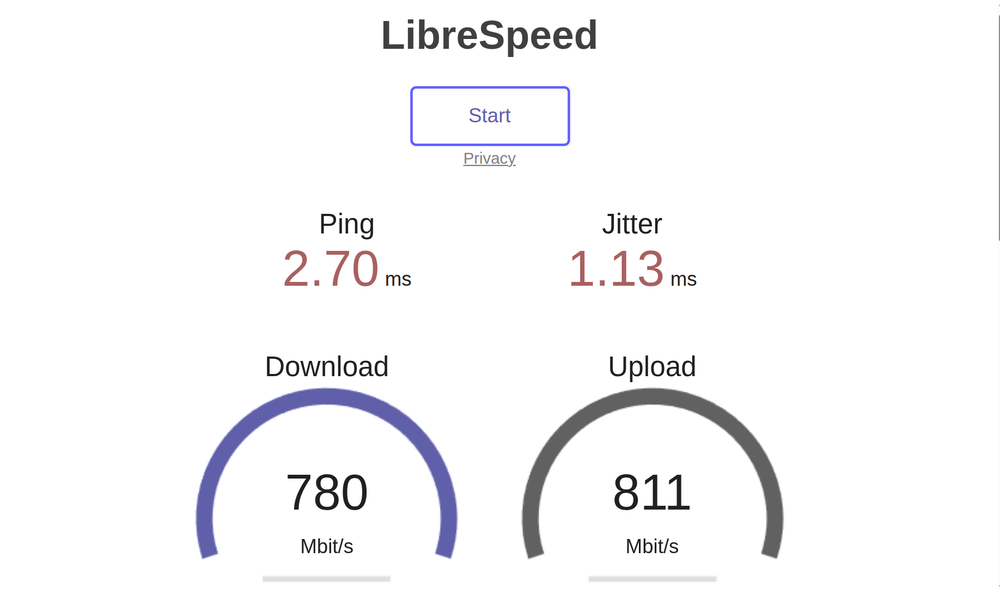
LibreSpeed is a popular Docker solution for measuring Network speed, both locally and on the internet. In this tutorial, I will cover both cases. Let’s get started!
Prerequisites
First of all, you need to get docker installed on your system. You can find detailed instructions on docs.docker.com/engine/install/ubuntu/#install-using-the-repository.
Local Deployment
Let’s make a folder for LibreSpeed and create the compose file.
       cd ~
mkdir librespeed
cd librespeed
sudo nano docker-compose.yml
Paste this in your terminal using Ctrl+Shift+V:
       services:
  speedtest:
    container_name: speedtest
    image: ghcr.io/librespeed/speedtest:latest-alpine
    restart: always
    environment:
      MODE: standalone
      TITLE: "LibreSpeed Speed Test" # The title of the webpage
      TELEMETRY: "true"
      ENABLE_ID_OBFUSCATION: "true"
      REDACT_IP_ADDRESSES: "false"
      DISTANCE: "km"
    ports:
      - "8080:8080" # If you want to change the port, edit the left part only
When you’re done, hit Ctrl+X, Y and Enter.
To spin up the container, run this command while you’re in the LibreSpeed directory:
sudo docker compose up -dYour page should be now working on http://YOUR_LOCAL_IP:8080. If you’re running docker on the same machine and not on a server, try using http://localhost:8080 for convenience.
Exposing LibreSpeed to the Internet
Note: I’m not going to go over security best practices for exposing ports and services to the internet.
To expose LibreSpeed to the Internet, just open up the LibreSpeed port. Below, you can find an example with Caddy, which gives you an SSL certificate automatically. If you’re not familiar with Caddy, I have a quick guide to get started Here.
       example.com {
        reverse_proxy speedtest:51821
}
Final Thoughts
LibreSpeed is the easiest and most user-friendly way to host a Speed Testing website. It offers a minimal interface, and is extremely lightweight on both the server and the client. With this tutorial, you should be able to get LibreSpeed up and running in no time!