Published
(Updated )
- 4 min read
Make a Desktop App with Jetpack Compose(KMP)

Introduction
This tutorial will guide you through making your first Desktop App in a familiar, Android way using KMP. I chose Android studio for this, but you can use IntelliJ IDEA if you like.
Setting Things Up
First, you have to update your IDE to avoid any weird incompatibility issues.
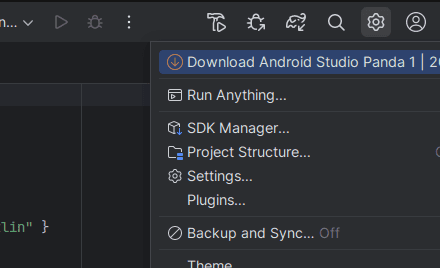
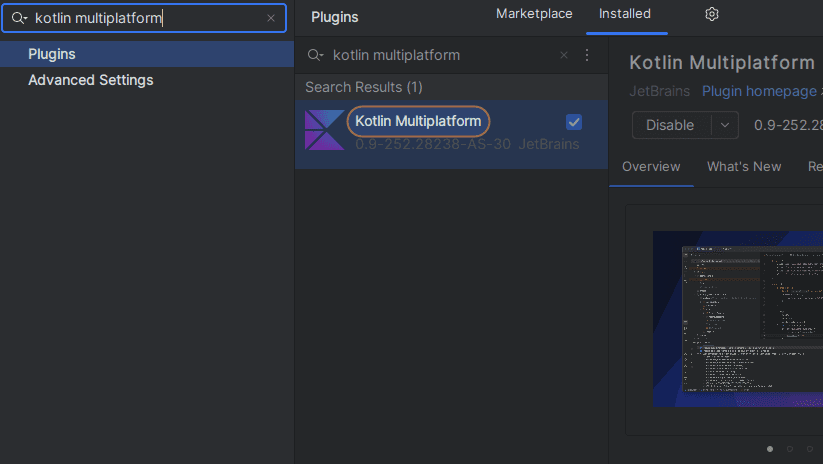
Then, you should go to Menu -> File -> Settings or use Ctrl+Alt+S, go to Plugins(4th option as of now) and grab the Kotlin Multiplatform Extension.
Create New Project
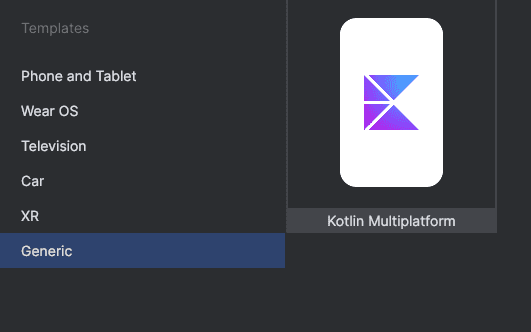
And now for the fun part! Start by creating a new project. On the very first screen you should now see a new “Generic” template category. If it’s missing, scroll down, I have a section just for that. That’s how you get access to the Kotlin Multiplatform Template.
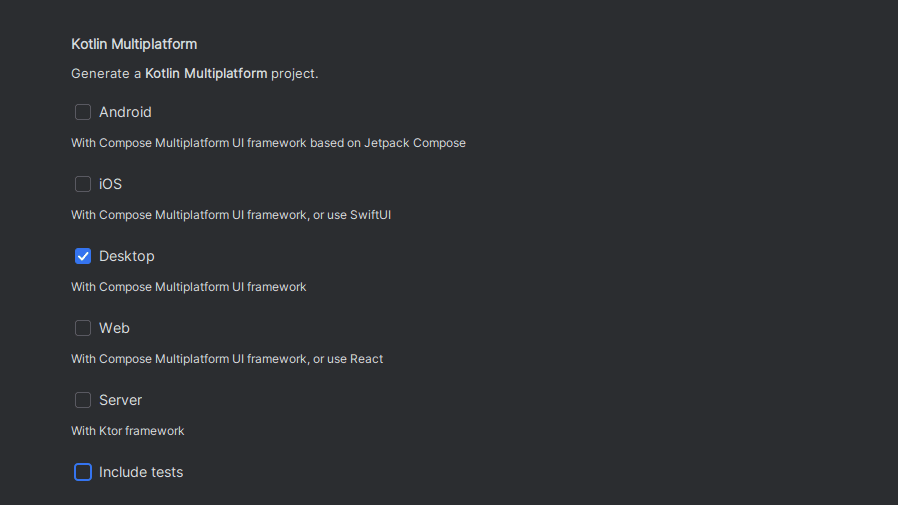
On the next screen, just click “Next” and, if you don’t actually care about creating a multiplatform app that runs on android, don’t bother with the “Minimum SDK” field. On the final screen, you will be asked about which platforms you want to support. Let’s just keep “Desktop” for now.
Now, it’s important to let the loader in the bottom-right do it’s thing, so grab a coffee. Once you’re back, go to KotlinProject/Shared/src/commonMain/kotlin/Package_folders/Greeting.kt. That’s where the Hello World lives.
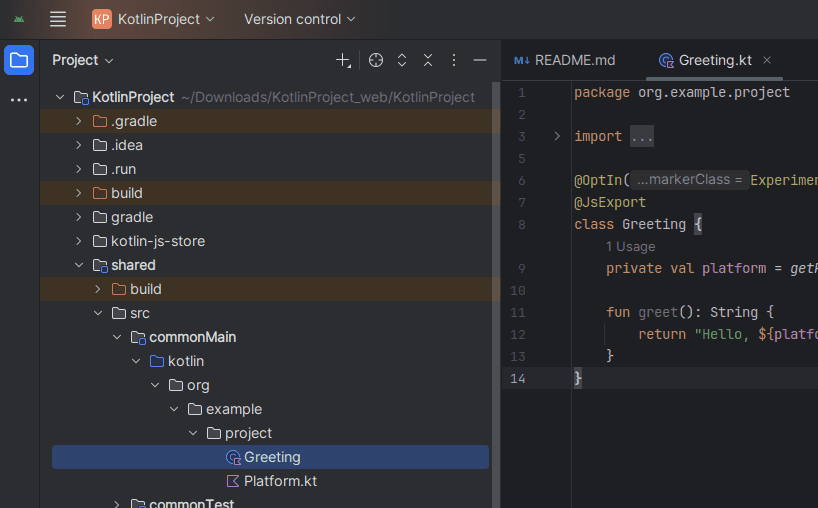
What if “Generic” is Missing?
Don’t panic. That’s what Jetbrain’s Kotlin Multiplatform Wizard is for! Android Studio doen’t play nicely with KMP so it’s really likely you’ll have to generate your project on this website if you get any kind of weird issues with your project. It’s as simple as setting it up on the web, downloading it, extracting it, and opening the extracted folder in Android Studio.
Running The App
If the correct configuration isn’t there by default, thus you can’t just click the “Play▶️” button, you should make a new one.
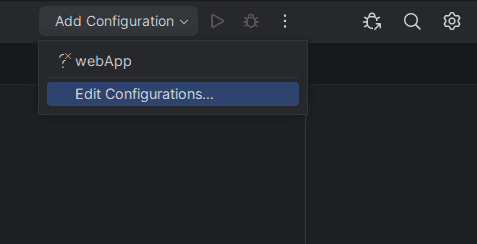
Go to Edit Configurations... -> "+"(or "Alt+Insert") -> Gradle. Here’s an example of a working configuration:
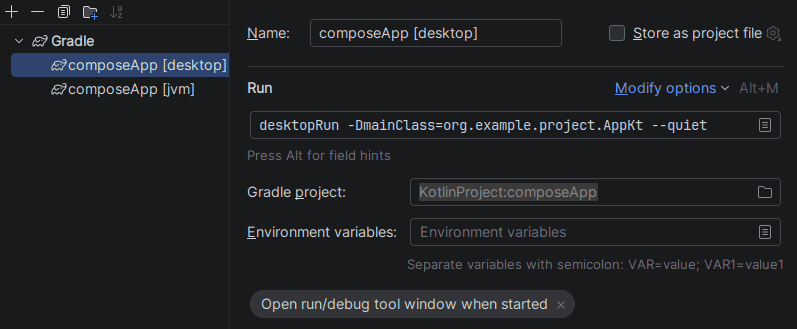
Make sure you change the package name to your’s. Also, I should note that Appkt is the main kotlin file of the project, without the ”.“. If needed, change that as well.
Go ahead and save it! Now, it will be in the “Add Configurations” menu whenever you need it, with a little play button next to it. Once you use it, it should become the default, so it will be easily accessible through the big Play button you know and love.
Extracting the App
I’m sure you’re excited to see your app packaged in it’s own executable file, whether that’s .exe, .dmg or .deb. Windows, MacOS and Linux are all supported! Just run .\gradlew.bat :composeApp:run if you’re on Windows, or ./gradlew :composeApp:run for MacOS and Linux in your IDE’s terminal. What executables will be produced depends on your target OSes, defined in your App’s build.gradle.kts(not Project!) which lives in KotlinProject/composeApp/src/build.gradle.kts. Here is an example to get you started:
       ...
compose.desktop {
    ...
        nativeDistributions {
                    targetFormats(TargetFormat.Dmg, TargetFormat.Msi, TargetFormat.Deb)
                    packageName = "org.example.project"
                    packageVersion = "1.0.0"
                    description = "My App's description."
                    copyright = "© 2026 Your Name"
        }
    ...
}
...
The new files should be in KotlinProject/composeApp/build/compose/binaries/main.
Logging
In order to set up logging, we can’t just use Logcat, as it is exclusive to Android. Instead, we’re going to use Kermit, which is a multiplatform logger. At this point I should mention, using standard println() statements will work just fine and show your logs in the Run window, but if you want something more advanced that shows severity alongside your logs(Warning, Info etc.) and can work in projects that target multiple platforms this is how you do it.
First, edit your app-level build.gradle.kts:
       ...
sourceSets {
        val commonMain by getting {
            dependencies {
                ...
                implementation("co.touchlab:kermit:2.0.3")
            }
        }
}
...
Then, edit main() to add some logs. Be careful when adding the Kermit import! Android studio might suggest something like java.util.logging instead of Kermit.
       import co.touchlab.kermit.CommonWriter
import co.touchlab.kermit.Logger

fun main() = application {
    Logger.setLogWriters(CommonWriter())

    Logger.d { "Hello, world!" }
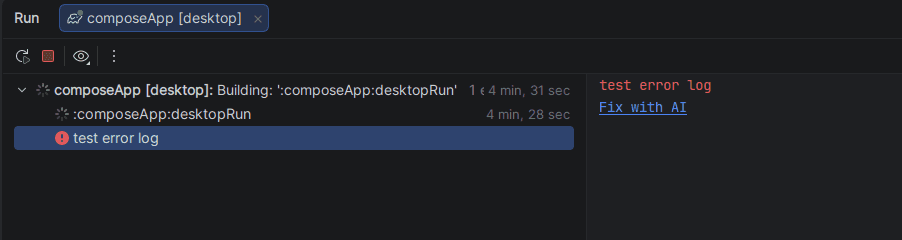
    Logger.e { "test error log" }
    Window(onCloseRequest = ::exitApplication, title = "Compose Desktop App") {
        home()
    }
}
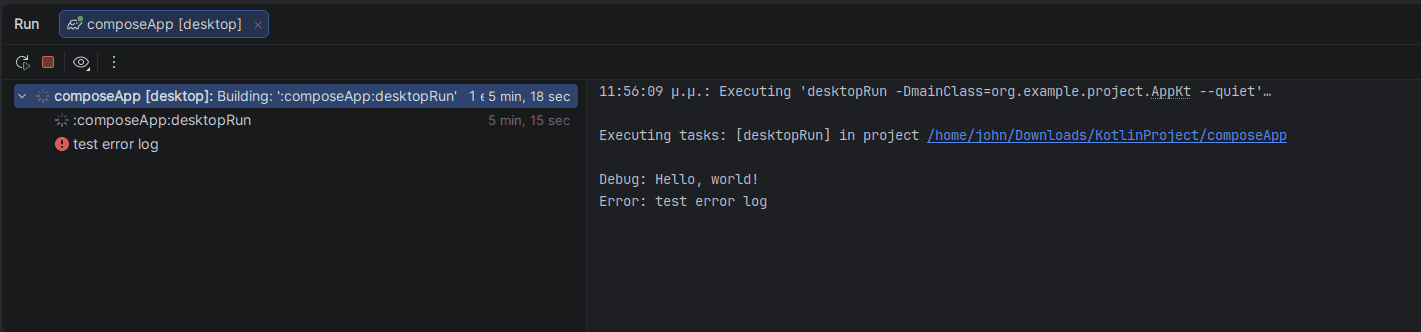
Now, click the run button and look for the logs in your Run window. If it doesn’t open on its own, you can use Alt + 4.
Happy coding!